Learning how to download kindle books opens up a world of reading convenience. Whether you own a Kindle e-reader, tablet, or smartphone, accessing your favorite titles has never been easier. With just a few taps, you can have a new book ready in seconds. Amazon makes the process simple, fast, and seamless across all platforms.
The key is knowing where to start and how to sync your devices. You don’t need technical skills. Anyone can master how to download kindle books with clear steps. This guide covers every method—using the Kindle app, visiting Amazon’s website, sending via email, and more. It also includes tips for troubleshooting, managing storage, and downloading while offline. By the end, you’ll confidently add books anytime, anywhere.
 Using the Kindle App on Smartphones and Tablets
Step-by-Step Instructions for iOS and Android
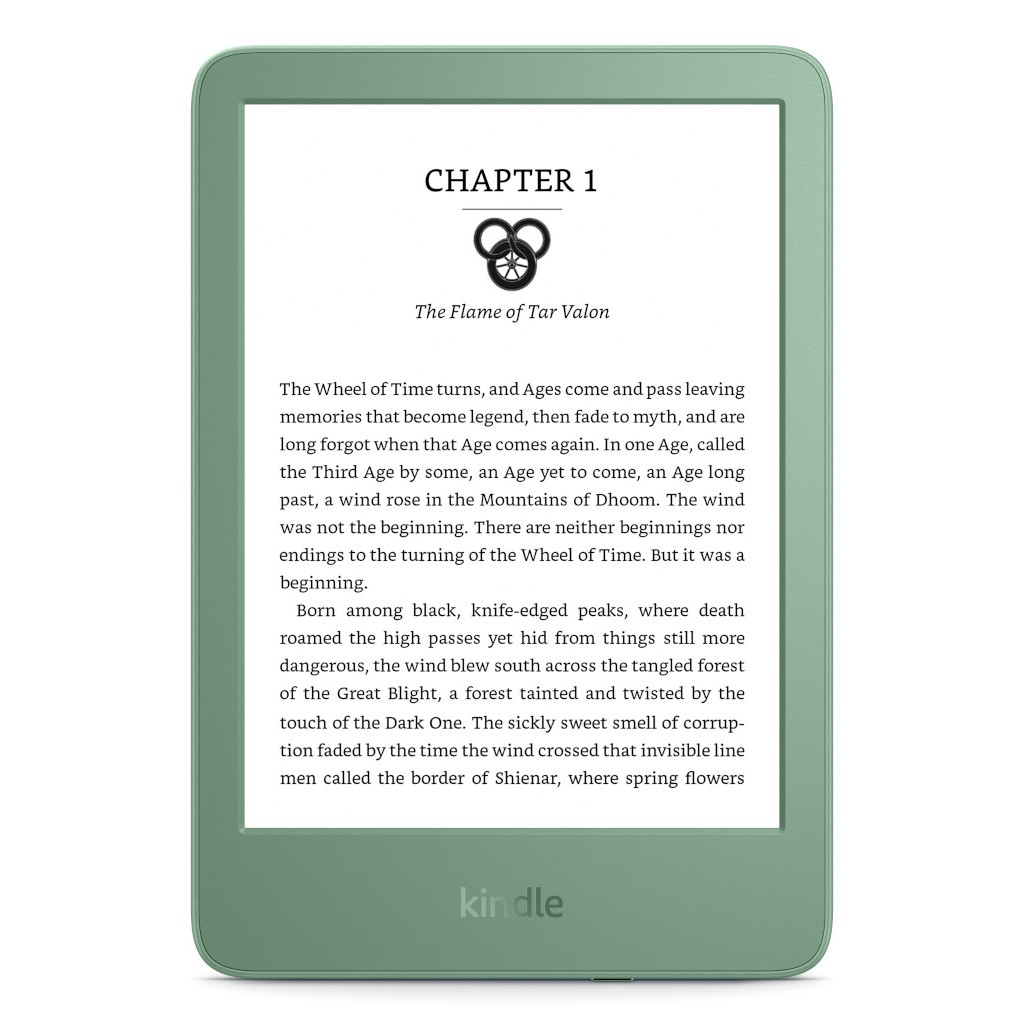
Downloading books through the Kindle app is one of the easiest ways to read on the go. First, install the free Kindle app from the Apple App Store or Google Play. Search “Kindle” and select the official Amazon version. Install it on your phone or tablet.
Next, sign in with your Amazon account. Use the same login you use for shopping. Once logged in, your entire library appears instantly. This includes past purchases, samples, and Kindle Unlimited titles.
Browse the home screen for recommendations. Or tap “Library” to see what you already own. Find the book you want. Then, press the cloud icon or “Download” button beside it. The book begins downloading immediately.
A progress bar shows how much is left. Wait a moment until it completes. After that, the book is available even without Wi-Fi. Open it anytime from your list.
You can also adjust settings. Turn on automatic downloads for new purchases. Enable syncing across devices. That way, your place, notes, and highlights follow you.
If the download fails, check your internet connection. Restart the app if needed. Make sure your device has enough storage space.
Using the app puts thousands of books at your fingertips. It’s ideal for daily commutes, travel, or relaxing at home.
Downloading Through Amazon’s Website
Accessing Your Library on a Computer
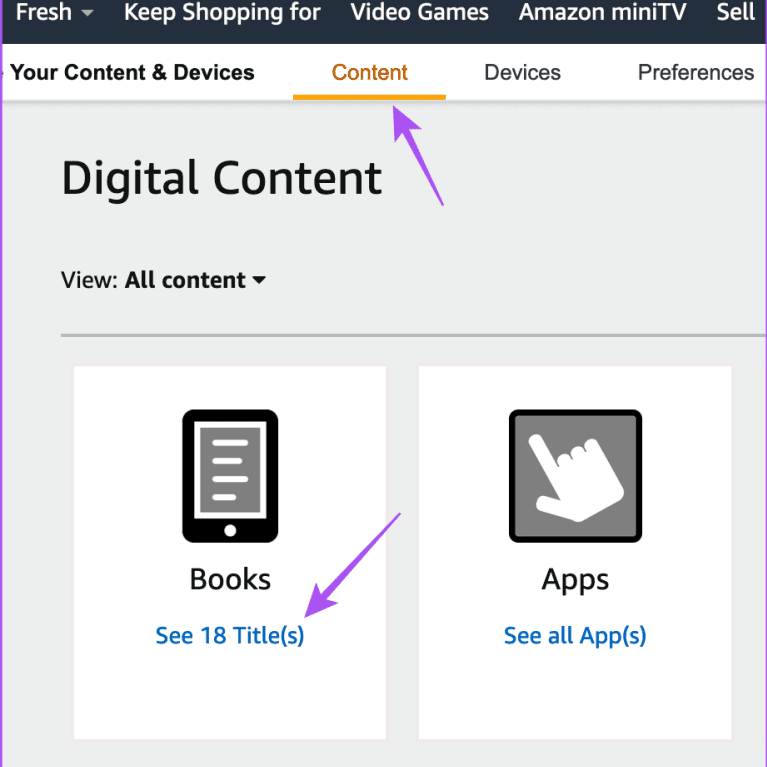
Many people prefer using a computer to browse and manage their books. Learning how to download kindle books via Amazon’s website gives you full control. Start by going to www.amazon.com. Log in with your account.
Hover over “Account & Lists.” Then click “Kindle E-readers & Books.” Select “Manage Your Content and Devices.” This brings up your digital library.
Your books appear in a grid or list format. Filter them by title, author, or purchase date. Find the one you want. Click the three-dot menu or “Actions” button next to it. Choose “Download & Transfer via USB” if you have a physical Kindle.
For apps, select “Deliver to Device.” Pick the device or app you want it sent to. The book delivers wirelessly in seconds. No cables are needed.
This method works well when buying gifts. You can send a book directly to someone else’s Kindle. Just choose their device under “Deliver to.”
You can also delete or archive books here. Free up space or organize your collection. Archived items stay in the cloud. You can re-download them later.
Always keep your browser updated. Older versions may block certain functions. Clear cookies occasionally for smoother access.
Managing books online gives a clear view of your collection. It’s perfect for planning your next reads.
 Transferring Books via Email (Send-to-Kindle)
How to Use Personal Documents and Whitelisted Addresses
Amazon offers a powerful feature called Send-to-Kindle. This allows users to email documents and ebooks directly to their device. It’s especially useful for PDFs, research papers, or self-published files.
First, find your personal Send-to-Kindle email address. Go to Amazon’s Manage Your Content page. Under “Preferences,” look for “Send-to-Kindle Email Settings.” Copy your unique address. It usually ends with @kindle.com.
Then, add trusted email addresses. Only messages from approved senders will deliver. Enter the email you plan to use. Click “Add Address” and confirm it.
Now, attach your file to an email. Supported formats include MOBI, PDF, DOC, TXT, and EPUB (converted). Keep the file under 50 MB. Send it to your Kindle email.
Within minutes, the document appears on your device. It shows up under “Documents,” not “Books.” You can read it like any other ebook.
This method avoids third-party apps. It keeps everything within Amazon’s system. It’s great for students, professionals, or travelers.
Make sure your device is connected to Wi-Fi. Otherwise, delivery delays occur.
Never share your Kindle email publicly. Spammers might flood your device. Remove old addresses if no longer needed.
Send-to-Kindle simplifies file sharing. It’s secure, reliable, and easy to set up.
Syncing Across Multiple Devices
Keeping Your Reading Progress Up to Date
One of the best features of the Kindle ecosystem is syncing. When you learn how to download kindle books, syncing ensures continuity. Read on your phone during lunch. Continue on your tablet at night. Your place, bookmarks, and notes move with you.
Sync happens automatically when connected to Wi-Fi. Open the Kindle app. The device checks for updates. If disabled, go to Settings and turn on “Whispersync.”
Whispersync saves everything. It tracks your last page. It stores highlights and annotations. These appear across all signed-in devices.
To test it, open a book on your phone. Read a few pages. Close the app. Then open the same book on your tablet. You should land on the exact line.
Some users turn off syncing to save data. However, this causes confusion later. You may forget where you left off. Always keep it enabled unless necessary.
You can also sync audiobooks if using Audible. Switch between reading and listening seamlessly. The app picks up right where you stopped.
Syncing works only with Amazon accounts. Do not log out unless switching users.
It supports unlimited devices. Add Kindles, phones, tablets, and PCs. All stay linked as long as they use the same login.
With syncing, your reading life stays organized. You never lose progress again.
 Troubleshooting Common Download Issues
Fixing Failed Downloads and Connection Errors
Sometimes, downloads fail. This can be frustrating. However, most issues have quick fixes. First, check your internet connection. Without Wi-Fi or mobile data, downloads stall. Try switching networks.
Restart the Kindle app. Close it completely. Reopen it and try again. This clears temporary glitches.
If the book still won’t download, remove it and re-add it. Press and hold the cover. Tap “Remove from Device.” Then return to the library. Tap “Download” again.
Clear the app cache. On Android, go to Settings > Apps > Kindle > Storage > Clear Cache. On iPhone, delete and reinstall the app. Your books stay safe in the cloud.
Low storage space prevents downloads. Check your device’s memory. Delete unused apps or media. Offload older books you’ve finished.
For physical Kindles, restart the device. Hold the power button for 40 seconds. Wait for it to reboot. This often resolves freezing issues.
Ensure your software is updated. Outdated firmware blocks new features. Go to Settings > Device Options > Update Your Kindle.
Contact Amazon Support if nothing works. Provide details about the problem. They can resend the book or fix account issues.
Most problems are minor. With patience, you can resolve them quickly.
Managing Offline Reading and Storage
Saving Books for Travel and Limited Connectivity
One major benefit of learning how to download kindle books is offline access. You don’t need constant internet. Once downloaded, books work anywhere. This is perfect for flights, road trips, or remote areas.
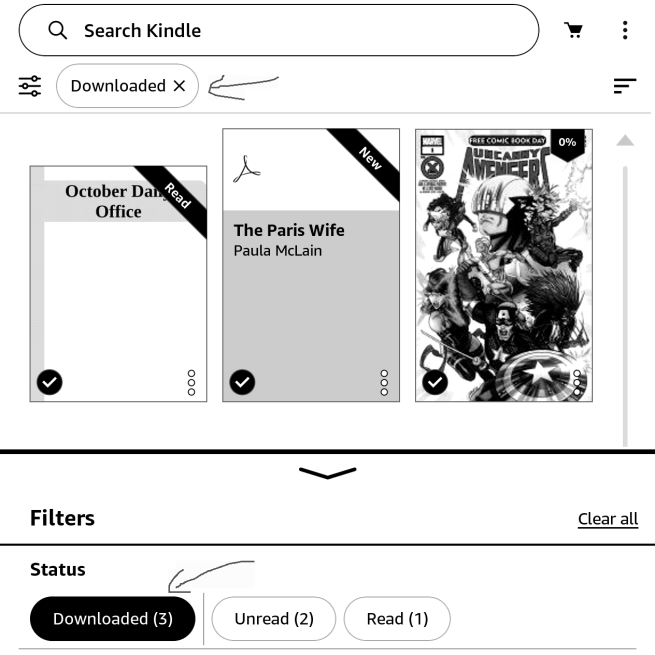
Before leaving, download all planned reads. Connect to Wi-Fi. Open each book. Confirm the download icon is gone. A checkmark means it’s ready.
Delete unneeded books to save space. Tap and hold the cover. Choose “Remove from Device.” It stays in the cloud. Re-download later.
Use collections to organize titles. Group books by genre, trip, or mood. Create folders like “Vacation Reads” or “Work Research.”
Avoid auto-downloading large files. Set the app to ask before downloading over cellular. This saves mobile data.
Keep your device charged. Long reading sessions drain batteries. Carry a portable charger if traveling.
On Kindle e-readers, battery lasts weeks. But tablets and phones need frequent charging. Plan accordingly.
Offline reading gives freedom. You can enjoy stories without signal. It’s ideal for focused, distraction-free time.
 Frequently Asked Questions
Solving Common Reader Concerns
Can I download kindle books without a Kindle device? Yes. Use the free Kindle app on phones, tablets, or computers.
Why is my download stuck? Check internet, restart the app, or delete and re-download the book.
Do I need Amazon Prime to download books? No. Prime members get some free titles. But anyone can buy or borrow books.
Can I share downloaded books with others? Not directly. Lending is allowed for some titles. Use Amazon’s lending feature. Limit: one loan per book.
Are all books downloadable? Most are. Some library rentals expire and can’t be kept forever.
How many devices can I use? Up to ten registered devices per account.
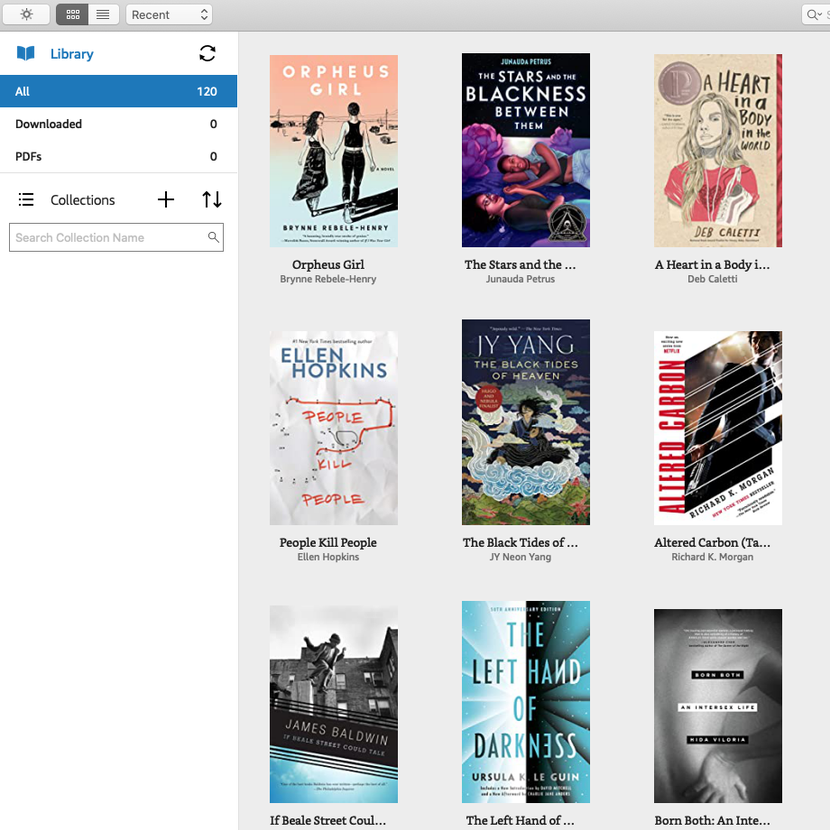
Where do I find my downloaded books? Open the Kindle app. Go to “Library.” Downloaded items show a checkmark.
Can I read downloaded books after canceling subscriptions? Yes. Purchased books remain yours. Kindle Unlimited titles disappear after returning.
 Final Thoughts
Enjoying Reading Anytime, Anywhere
Understanding how to download kindle books transforms your reading experience. It removes barriers and adds flexibility. You can carry hundreds of titles in your pocket. There’s no excuse to ever run out of something to read.
Whether you use a Kindle e-reader, tablet, or laptop, the process is simple. Download once, read everywhere. Sync keeps everything current. Offline access ensures no interruptions.
Take time to explore features. Use collections, adjust fonts, and try Whispersync. These small tools improve comfort and enjoyment.
Reading should be easy. With the right knowledge, it is. So download your next favorite book today. Let the story begin—one tap at a time.